
Catalogs
A Catalog is the visual and distributable output of PBLISH. It combines a data feed, a design template, a target platform, and a canvas size to automatically generate product ad images on a schedule. It exposes a permanent public URL that ad platforms can fetch on demand.
What is a Catalog?
When you create a catalog in PBLISH, you are configuring an automated pipeline that:
- 1Reads your product data from the linked feed on the configured schedule
- 2Loops through every product (or every product in a selected Set) and renders an image using your design template, substituting dynamic variables like {{price}}, {{name}}, {{image}}, {{brand}}, {{discount_amount}}, etc.
- 3Packages all generated images into a platform-formatted catalog feed
- 4Updates the permanent public URL so that the ad platform always receives the latest version on its next fetch
Creating a Catalog
Navigate to Catalogs in the left sidebar and click Add Catalog +. A modal dialog will appear with the catalog configuration fields.
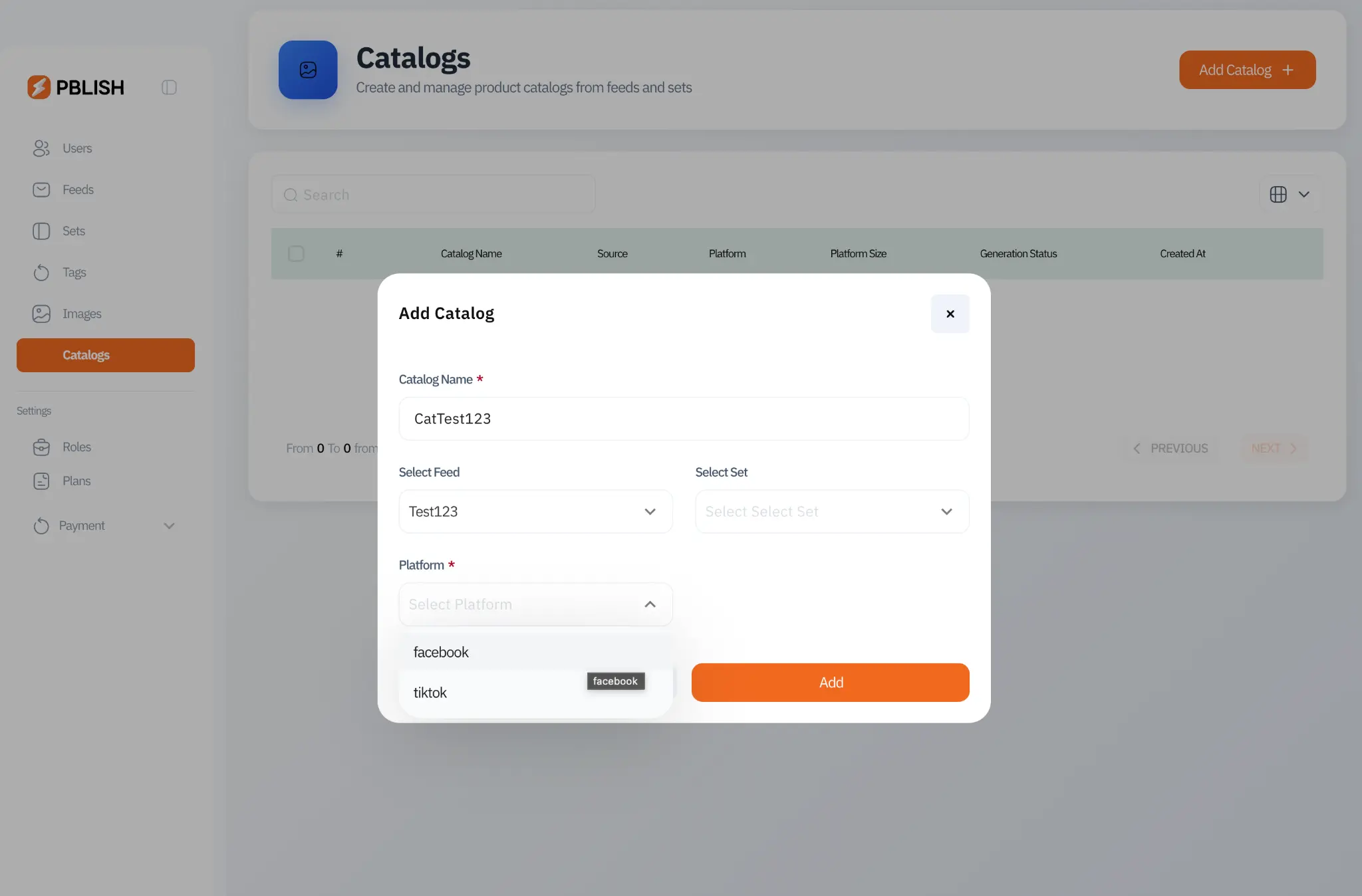
| Field | Required | Description |
|---|---|---|
| Catalog Name | Yes | A descriptive name (e.g., "Facebook Square / Summer 2025") |
| Select Feed | Yes | The data feed that powers this catalog |
| Select Set | Optional | Filter to a specific product set instead of the full feed |
| Platform | Yes | The social network this catalog targets |
| Platform Size | Yes | Canvas dimensions for the generated images |
Platform Sizes
Each platform supports specific canvas sizes optimized for different ad placements. PBLISH offers the following standard sizes:
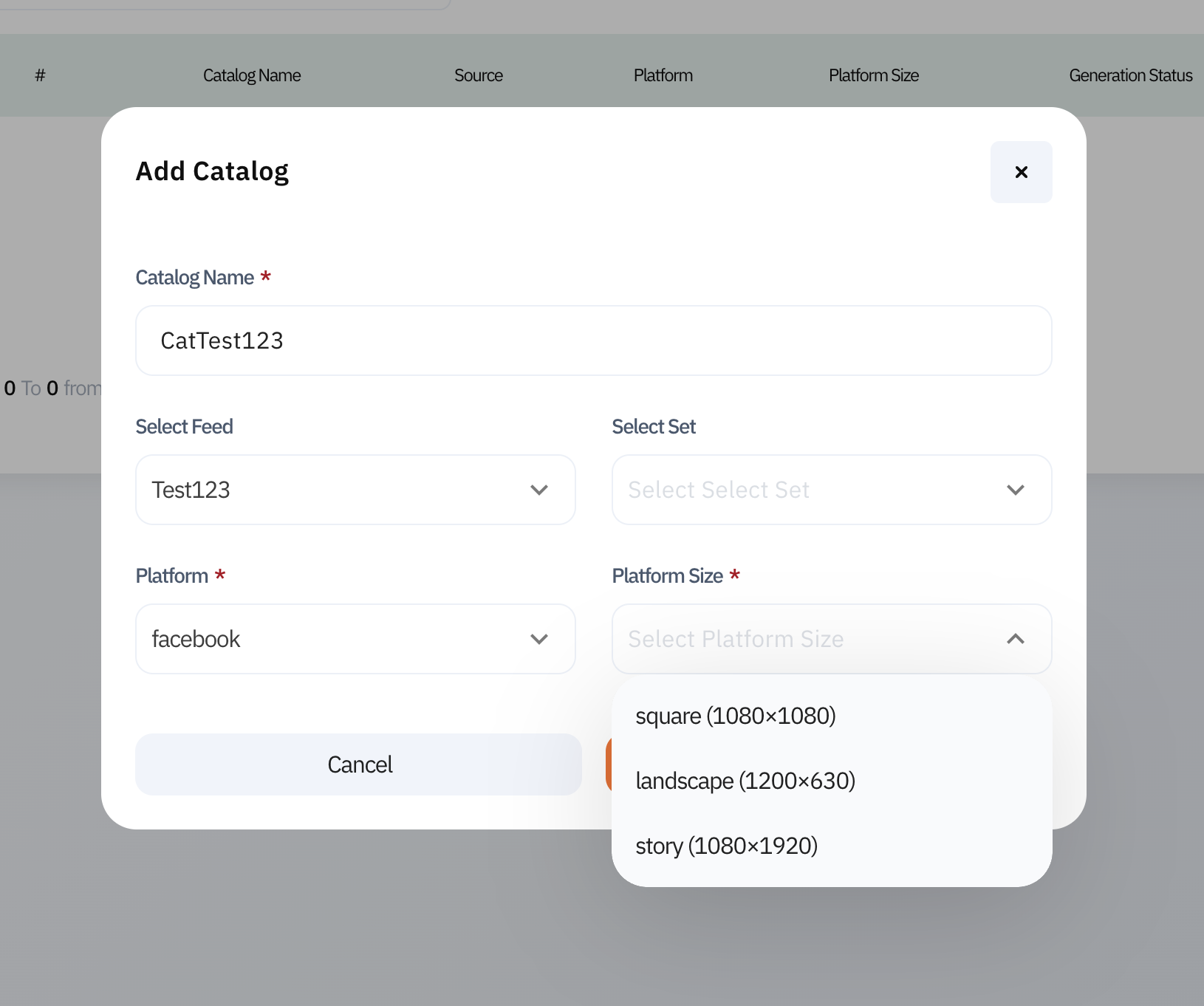
| Size Name | Dimensions | Best Platforms | Typical Use |
|---|---|---|---|
| Square | 1080 × 1080 | Facebook Instagram TikTok | Feed posts, catalog ads, product showcases |
| Landscape | 1200 × 630 | Facebook Google Ads | Link ads, display banners, news feed ads |
| Story | 1080 × 1920 | Instagram Snapchat TikTok | Stories, Reels, full-screen vertical ads |
Catalog Setup Guide
After creating a catalog, the platform displays a Catalog Setup Guide with four sequential steps that must be completed before the catalog becomes active. Each step shows its current status (Completed, Pending, Inactive, or Not Ready Yet).
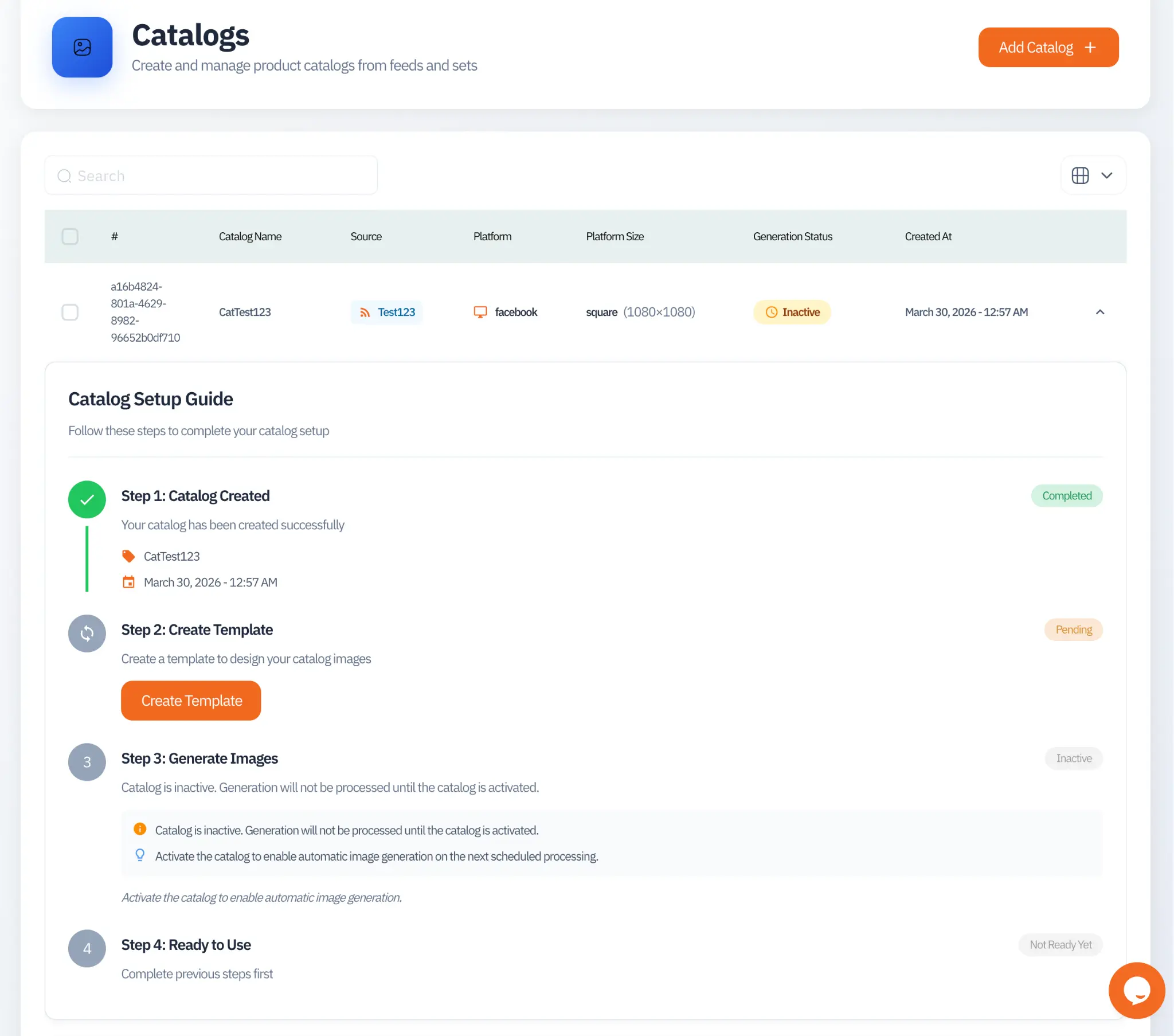
Completed automatically when you click Add. Records the catalog name, creation timestamp, and configuration.
Click the Create Template button to open the visual design editor. Build your ad layout using dynamic variable placeholders from your feed. Once saved, this step is marked complete.
Once the template is ready and the catalog is active, image generation runs automatically on the next scheduled cycle. This step shows the last generation timestamp and any errors encountered.
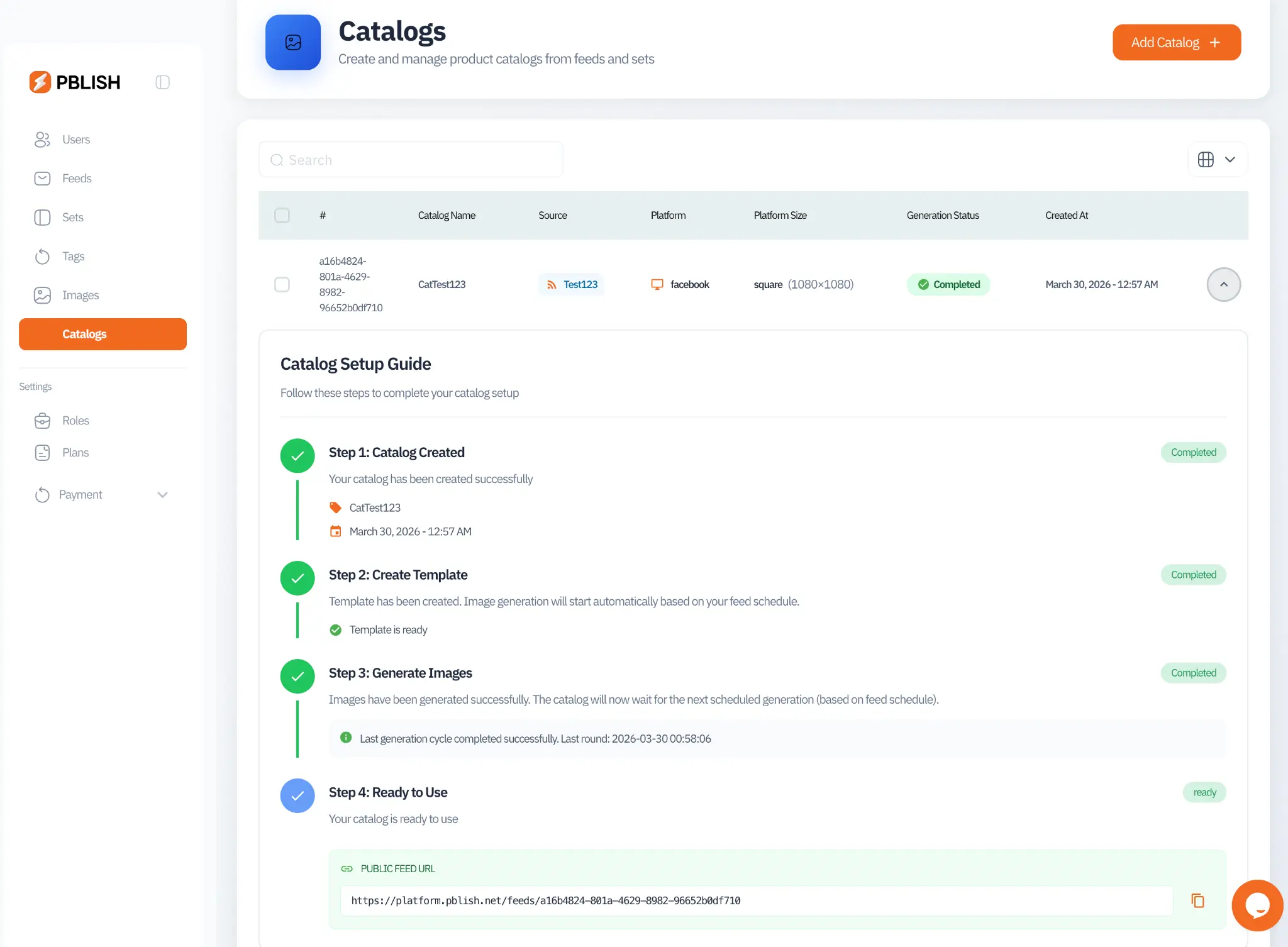
When all images have been generated successfully, the catalog becomes ready and the Public Feed URL is revealed. Copy this URL and paste it into your ad platform.
Completed Catalog & Public Feed URL
Once all four setup steps are complete, the catalog status changes to Completed and the Public Feed URL becomes visible. This is the permanent magic link you paste into your ad platform.
Creating Multiple Catalogs from One Feed
One of PBLISH's most powerful capabilities is the ability to create multiple catalogs from a single feed. Each catalog can target a different platform, use a different canvas size, or apply a different design template while using the same underlying product data.
For example, from a single "Electronics" feed you might create:
- A Facebook square (1080×1080) catalog with a bold price-focused template
- A TikTok square catalog with a minimal, lifestyle-focused template
- An Instagram story (1080×1920) catalog for vertical ad placements
- A Snapchat story catalog with a different color scheme
All four catalogs update automatically on the same schedule as the feed, and each has its own permanent public URL to paste into the respective ad platform.
Updating Feeds and Templates
Both the feed data and the catalog template can be updated at any time. Changes take effect on the next scheduled generation cycle:
- Feed data changes (e.g., new prices in your Google Sheet): Reflected in the next generation cycle automatically
- Template design changes: Save the updated template and it will be applied to all products in the next generation cycle
- Column mapping changes: Updated mapping is applied on the next sync and generation cycle