
Column Mapping
Column mapping is PBLISH's intelligent attribute translation layer. You define how your source data columns relate to PBLISH's universal fields once, and PBLISH automatically translates them into the correct platform-specific column names for every social network on every generation cycle.
Why Column Mapping Matters
Every major advertising platform has its own naming convention for product attributes. The same value (for example, the product image URL) is called image_link on Facebook, sku_link on TikTok, and something else on other platforms. Without PBLISH, you would need a separate, correctly named spreadsheet for each network you target.
PBLISH solves this with a universal mapping layer. You describe what each column means (for example, image URL or price). PBLISH then maps those fields to each platform's expected names on every generation run.
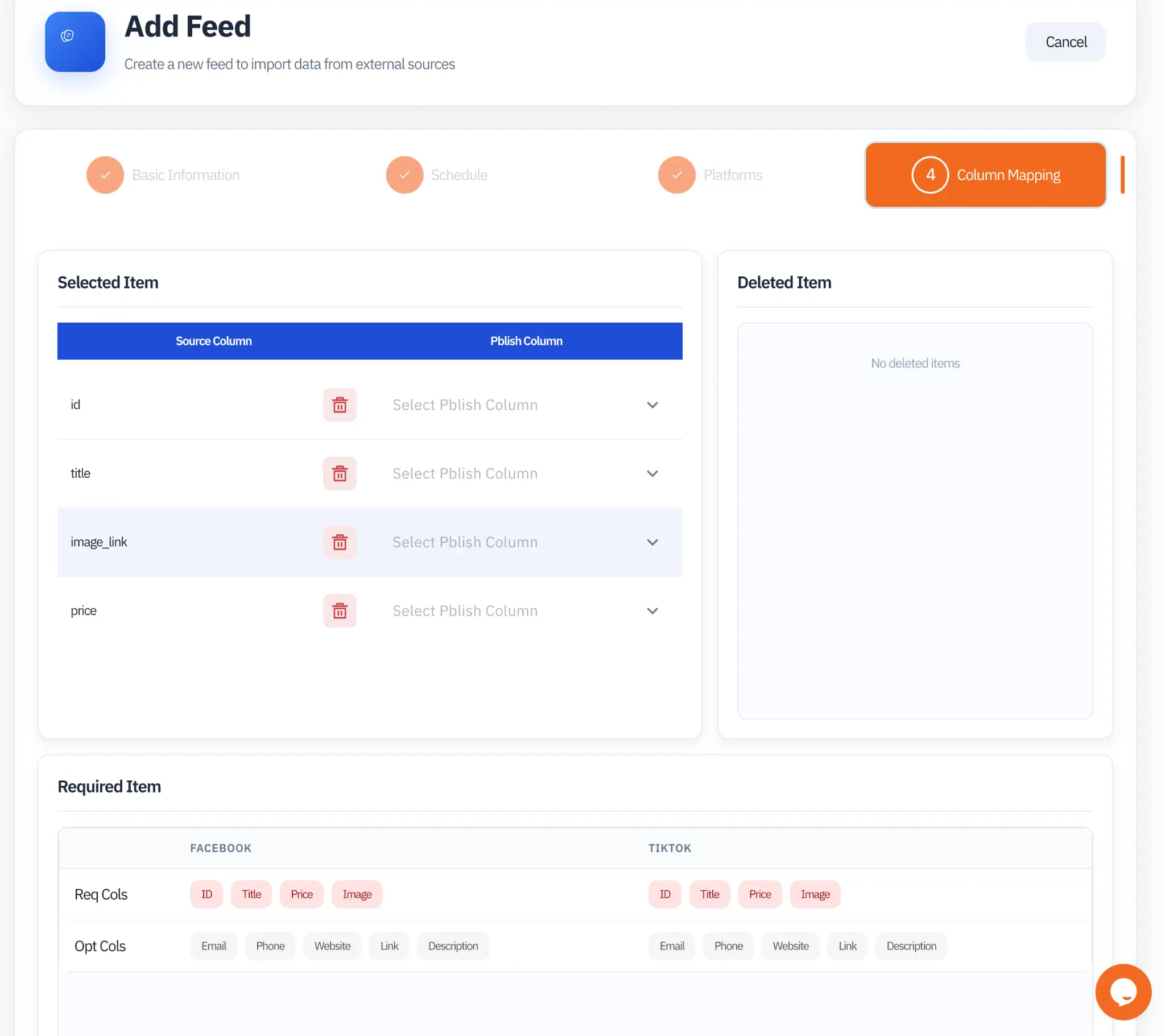
The Mapping Interface
The Column Mapping step (Step 4 of the feed creation wizard) presents a two-panel interface. The left panel shows all the columns detected in your source data. For each source column, you select the corresponding PBLISH universal field from a dropdown. The right panel shows any columns you have chosen to exclude. At the bottom, the Required Items section shows exactly which fields each of your selected platforms requires and which are optional.
Platform Attribute Reference
The table below shows how PBLISH's universal field names map to the platform-specific column names that each social network expects in the catalog feed. This translation happens automatically. You do not need to memorize these platform-specific names.
| PBLISH Field | TikTok | Description | ||
|---|---|---|---|---|
id | id | sku_id | id | Unique product identifier |
title | title | title | title | Product name or title |
image_url | image_link | sku_link | image_link | URL to the main product image |
price | price | price | price | Current product price |
description | description | description | description | Product description text |
link | link | url | link | Product page URL |
brand | brand | brand | brand | Brand or manufacturer name |
availability | availability | availability | availability | in_stock or out_of_stock |
category | google_product_category | product_category | google_product_category | Product category classification |
Required Columns by Platform
The following table summarizes the minimum required columns for each supported platform. Ensure all required fields are mapped before saving your feed.
| Platform | Required Fields | Optional (Recommended) |
|---|---|---|
| ID, Title, Price, Image | Email, Phone, Website, Link, Description | |
| TikTok | ID, Title, Price, Image | Email, Phone, Website, Link, Description |
| ID, Title, Price, Image, Link | Description, Brand, Category | |
| Snapchat | ID, Title, Price, Image, Link | Description, Brand, Availability |
| Google Ads | ID, Title, Price, Image, Link, Availability | Description, Brand, Category, GTIN |
Editing an Existing Mapping
You can update the column mapping of an existing feed at any time by clicking the edit icon on the feed row in the Feeds list. Changes take effect on the next scheduled generation cycle. Every catalog that uses that feed picks up the updated mapping automatically.
Common Mapping Issues
image_url field, not to a description or link field.