
Feeds
A Feed is the data source behind every catalog. It connects PBLISH to your products (Google Sheets live link or an uploaded CSV/Excel file) and controls how often that data is refreshed.
What is a Feed?
Every catalog in PBLISH is built on top of a feed. The feed is the single source of truth for your product data. It stores every row and attribute (name, price, image URL, SKU, brand, discount, availability, and so on) and stays in sync with your source on the schedule you set.
One feed can power multiple catalogs simultaneously. For example, you might have a single "Main Product Feed" that drives a Facebook square catalog, a TikTok catalog, and a Snapchat story catalog, all updating from the same data source on the same schedule.
Data Sources
PBLISH supports two types of data sources, each suited to different workflows:
| Feature | Google Sheets | File Upload (CSV/Excel) |
|---|---|---|
| Automatic Updates | Yes, on every sync cycle | No; manual re-upload required |
| Setup Complexity | Medium (share URL) | Simple (upload file) |
| File Size Limit | No limit | 10 MB (10,240 KB) |
| Supported Formats | Google Sheets only | CSV, XLSX, XLS |
| Team Collaboration | Yes, multiple editors | No |
| Best For | Live inventory, dynamic pricing | One-time imports, static catalogs |
Creating a Feed
Navigate to Feeds in the left sidebar and click + Add Feed. The wizard guides you through four steps.
Step 1: Basic Information
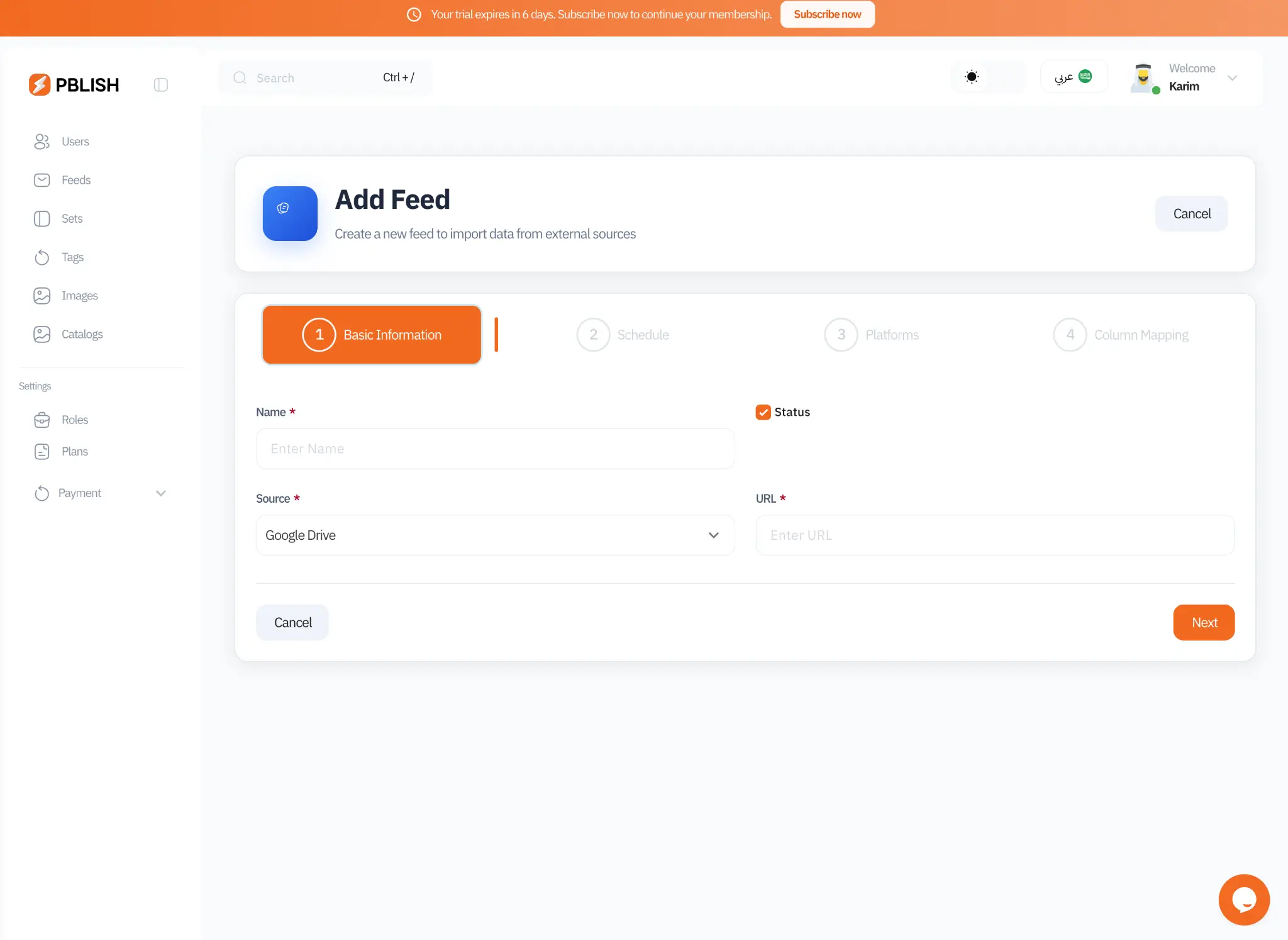
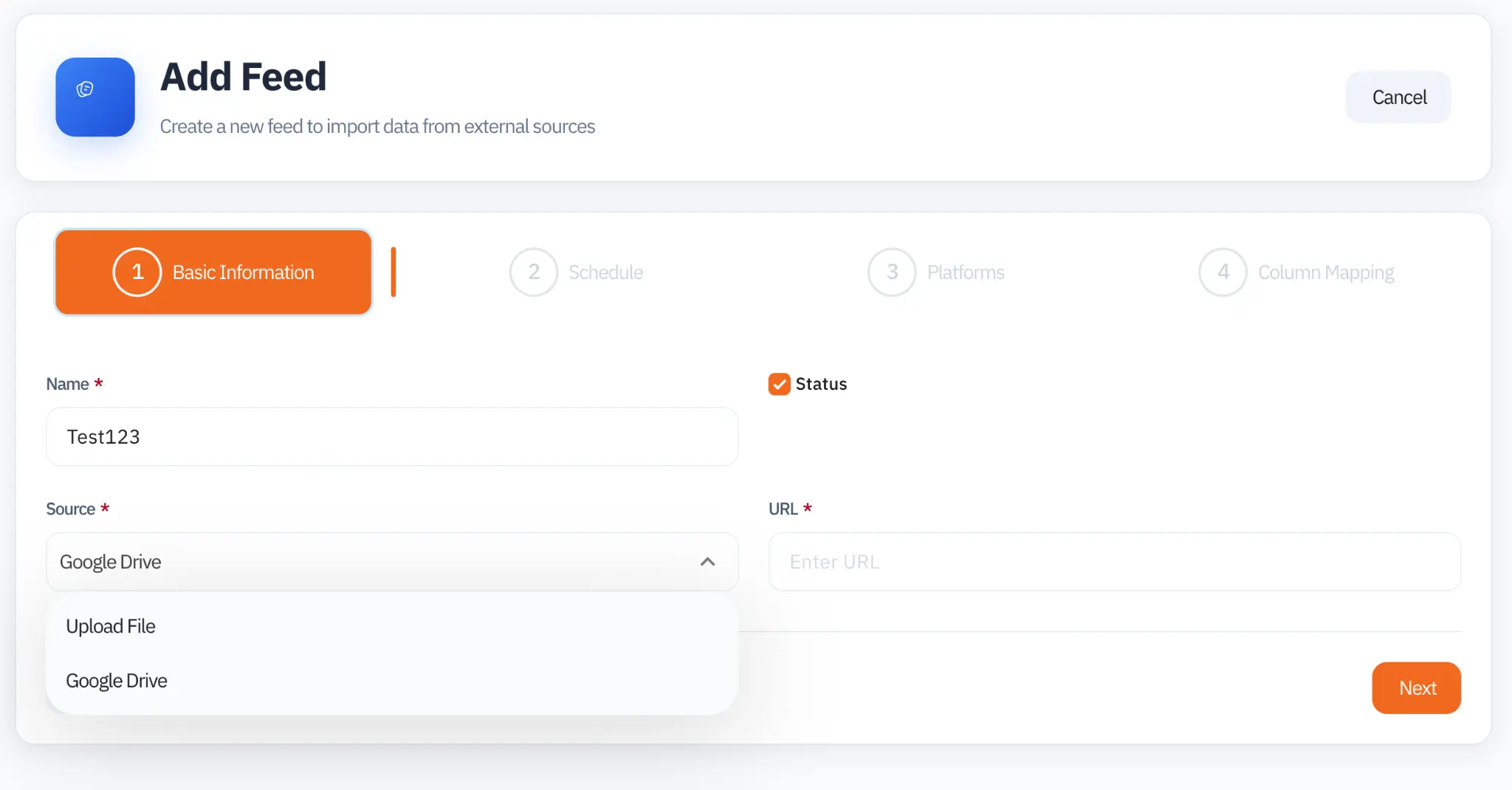
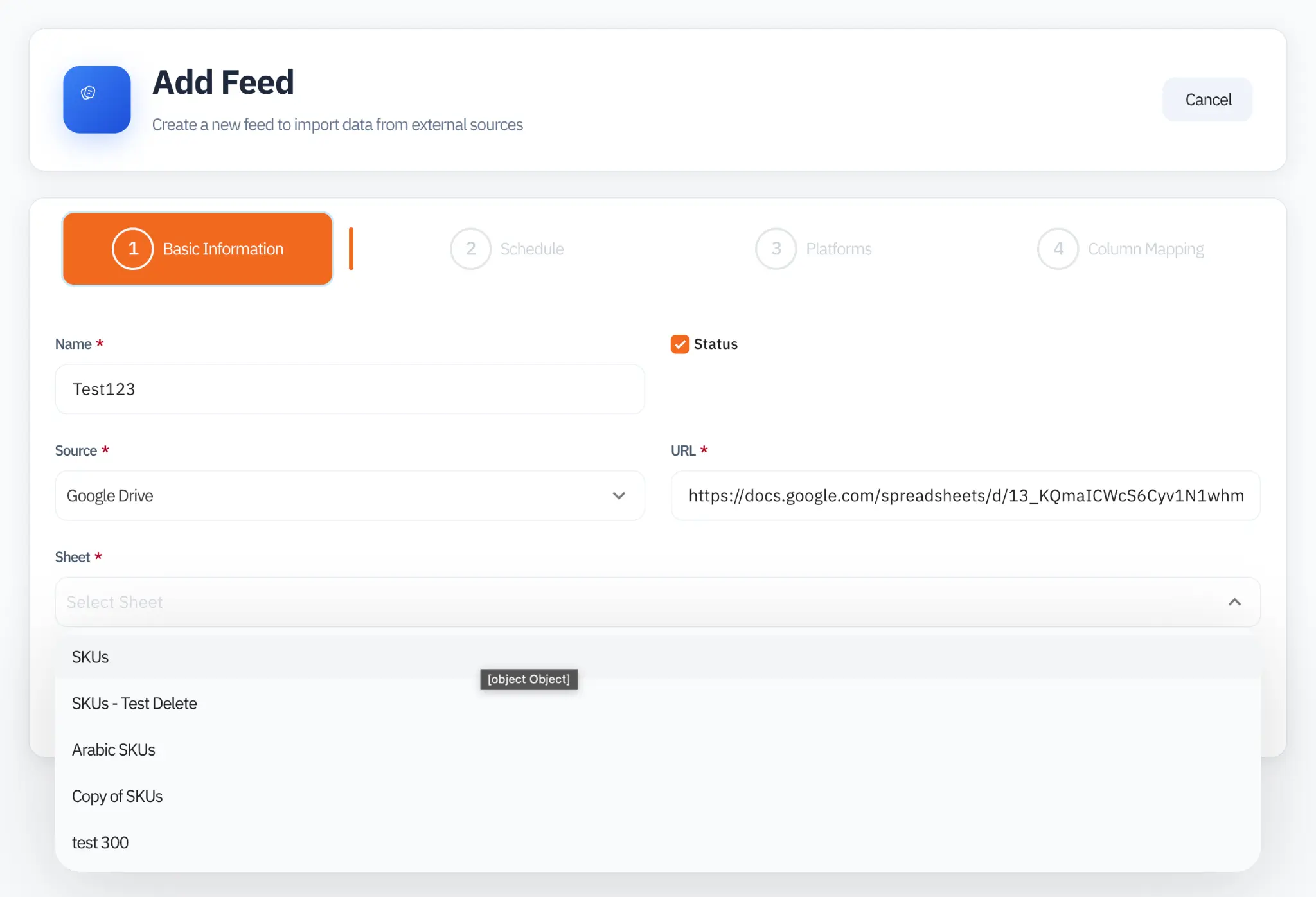
Enter a descriptive name for your feed and choose your data source. If you select Google Drive, you will be prompted to enter the Google Sheets URL and select the specific sheet tab. If you select Upload File, you will upload your CSV or Excel file directly.
Step 2: Schedule
The schedule controls how frequently PBLISH reads your data source and triggers a new generation cycle for all catalogs built on this feed.
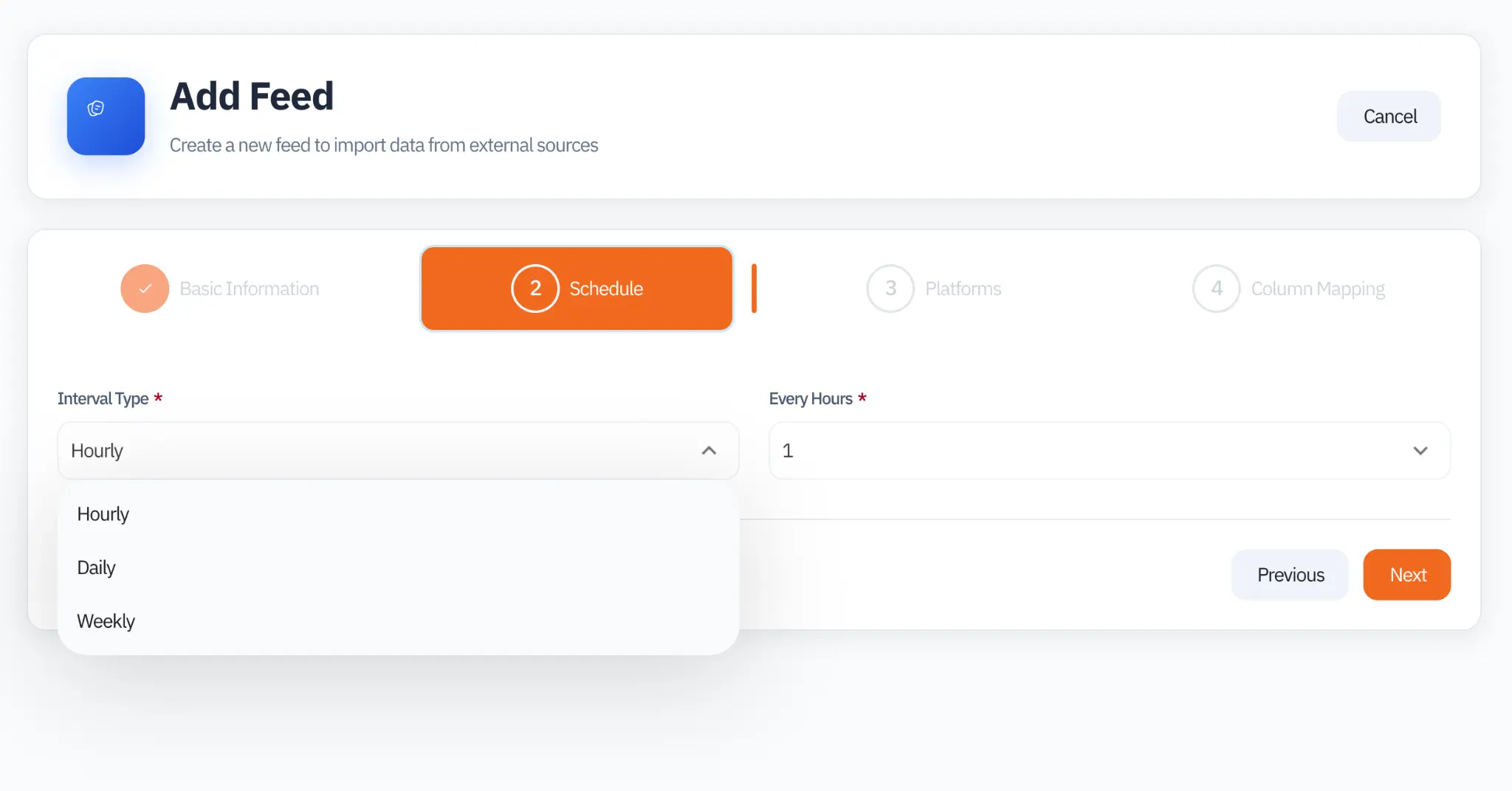
The available interval types are:
- Hourly: Runs every N hours (1 to 24). Ideal for e-commerce with live stock levels, flash sales, or frequently changing prices.
- Daily: Runs once per day. The most common choice for businesses with regular but not real-time product updates.
- Weekly: Runs once per week. Suitable for stable catalogs where products rarely change, furniture, real estate, or seasonal collections.
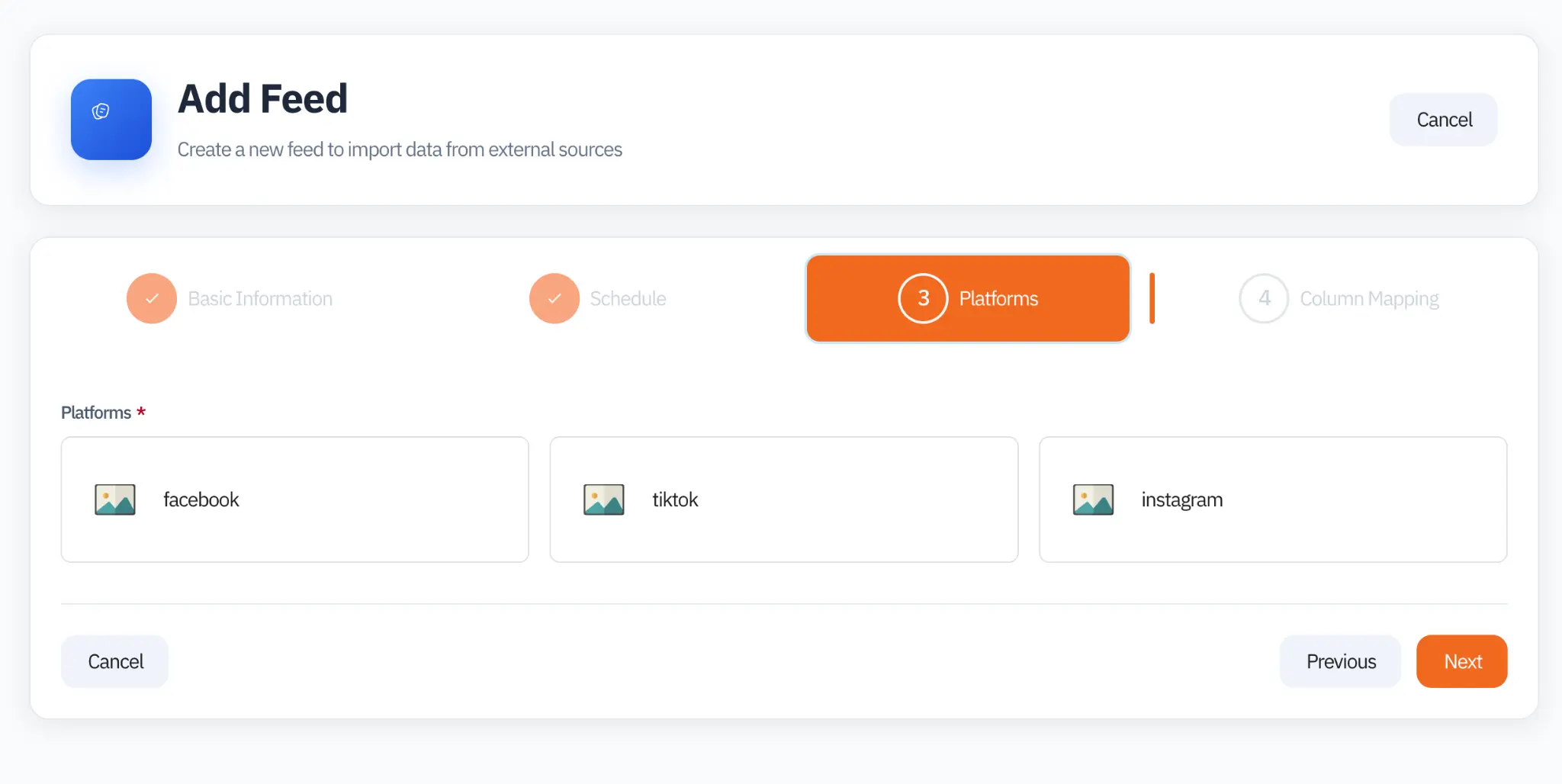
Step 3: Platforms
Select every social platform you intend to target with catalogs from this feed. This selection determines which platform-specific required and optional columns are shown in the next step.
Step 4: Column Mapping
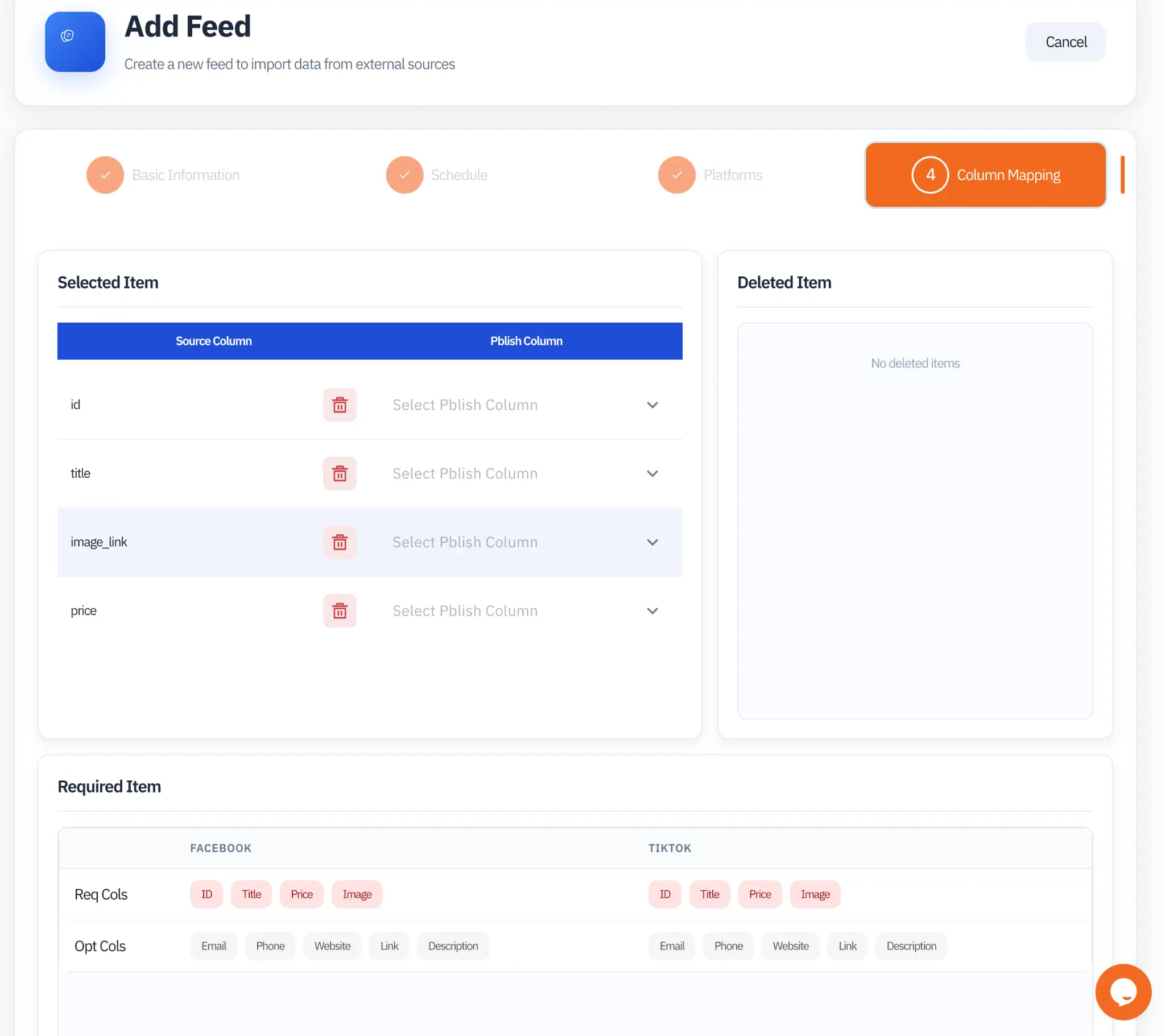
This is the most important step. Map each column from your source data to PBLISH's universal field names. The interface shows your source columns on the left and the PBLISH column name on the right. The Required Items section at the bottom shows exactly which fields each selected platform needs.
Managing Existing Feeds
The Feeds list view shows all your feeds with their key metrics. Each row displays the feed ID, name, product count, interval type, data source, and current status. Expanding a feed row reveals the Latest Sync Log, a detailed summary of the most recent data sync cycle.
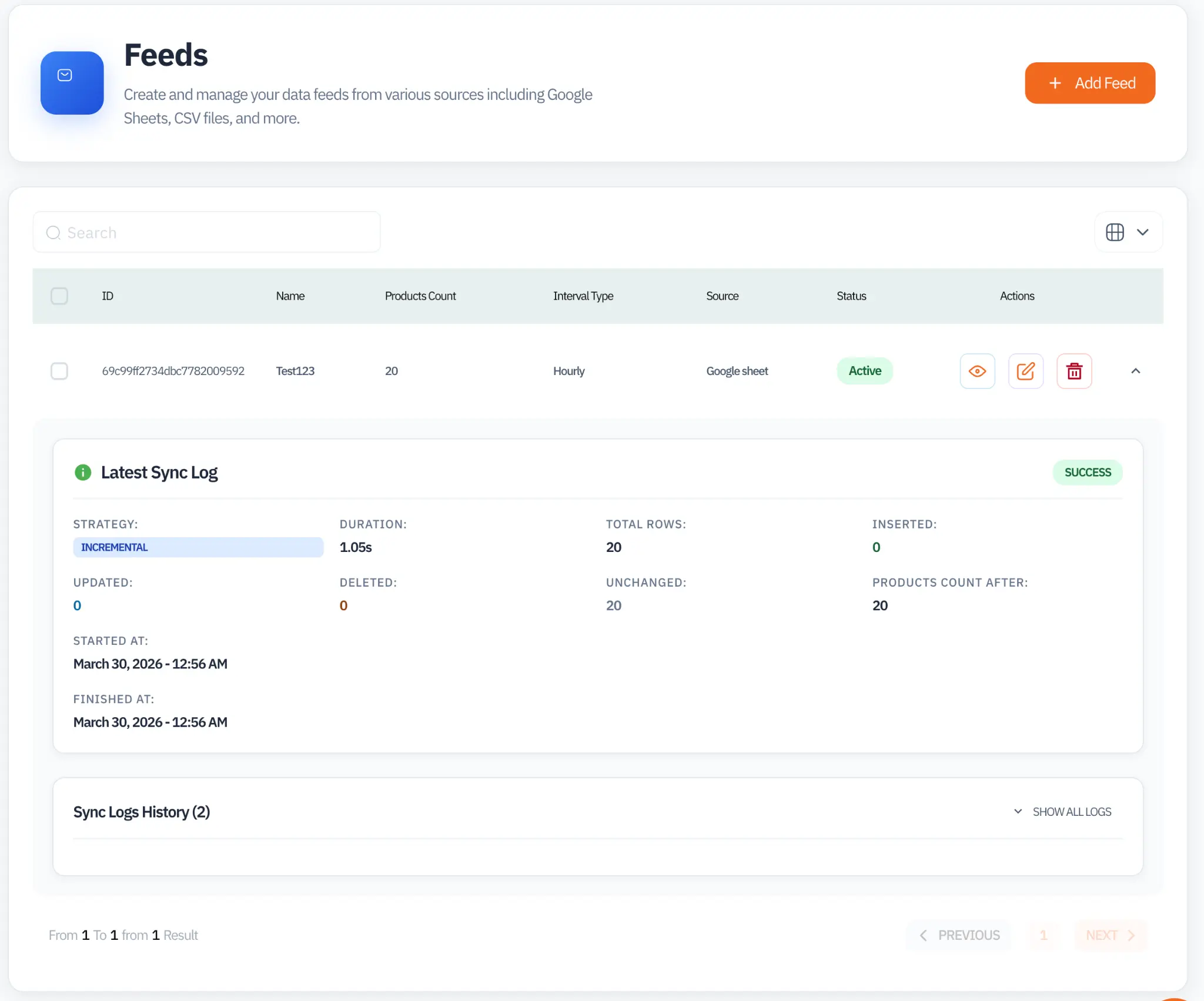
| Metric | Description |
|---|---|
| Strategy | Incremental (only changes) or Full (complete replacement) |
| Duration | Time taken to complete the sync in seconds |
| Total Rows | Total number of product rows read from the source |
| Inserted | New products added in this sync cycle |
| Updated | Existing products with changed data |
| Deleted | Products removed from the source |
| Unchanged | Products with no changes detected |
| Products Count After | Total active products in the feed after this sync |
Viewing Feed Products
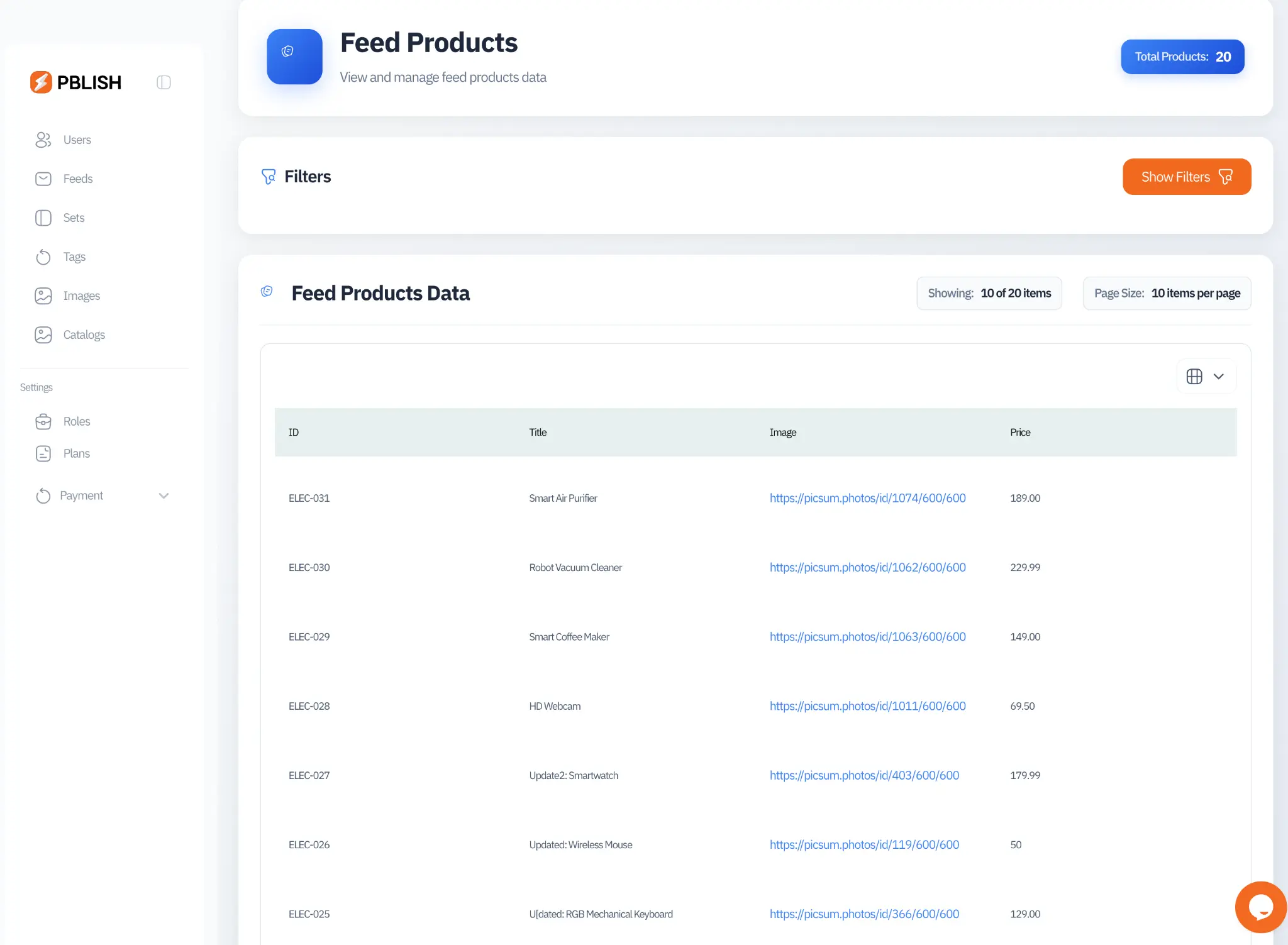
Click the eye icon on any feed to open the Feed Products view. This shows all products currently stored in PBLISH from that feed, with their mapped column values. You can use filters to search for specific products and verify that your data is being ingested correctly.
System Limits & Performance
| Limit | Value | Notes |
|---|---|---|
| Batch processing | 50 feeds per minute | Google Sheets feeds processed in batches |
| Sync timeout | 2 hours | Stuck feeds are automatically cleaned up |
| Log retention | 7 days (default) | Sync logs are kept for 7 days |
| File upload size | 10 MB | CSV, XLSX, XLS only |
| Products per feed | Plan-dependent | Starter: 5,000 / Foundation: 25,000 / Ultimate: 30,000+ |
Recommended Data Structure
For best results, structure your product data with these columns. Headers must be in the first row of your sheet or CSV file.
| Column | Required | Notes |
|---|---|---|
id or sku | Required | Unique product identifier |
title or name | Required | Product name, max 255 characters |
image_url | Required | HTTPS URL to product image, min 800×800px recommended |
price | Required | Current price (numeric or formatted) |
description | Recommended | Product description for ad copy |
brand | Recommended | Brand or manufacturer name |
category | Recommended | Product category for filtering and sets |
discount_amount | Optional | Discount value to display in ad template |
availability | Optional | in_stock / out_of_stock |
link | Optional | Product page URL for click-through |